A guest arrives late. A cleaner needs a short window between stays. A tenant moves out earlier than planned. The lock itself may be working fine, yet keeping track of who can enter—and when—quickly becomes a job of its own.
The short answer: Give each person only the access they need, set an end date when appropriate, and review active permissions at every handoff. DESLOC App Landlord Mode brings rental-focused controls into a property view, so owners can organize locks and keep tenant access tied to a defined period.
Why rental access is harder than handing over a key
At a home you live in, access rarely changes. At a rental, the list can change from week to week: a prospective tenant, an agent showing the property, the current resident, a repair professional, and the next guest may all need different kinds of entry.
Those handoffs rarely happen on a perfect schedule. A guest's flight is delayed. A cleaner finishes later than expected. A repair visit moves to the next day. A tenant extends a lease or leaves early. Each change can leave an old permission in place or cause the next person to arrive without working access.
The pressure lands on different people. An owner may be managing several doors from another city; a co-host or property manager needs to know which door to update; and a guest standing outside with luggage just needs clear instructions and a way in. A physical key can be copied or misplaced, while meeting everyone in person may not fit their schedule. Digital access helps only if the owner can see which permissions are still active. A useful starting question is: Who should be able to open this door today, and when should that access end?
What landlords and hosts actually need
They need a clear view of each property, not a long list of lock names that look alike. When managing more than one unit, choosing the wrong door can send a working credential to the wrong place. Grouping locks by property makes the next action easier to find and check.
They also need access that matches the visit. A long-term tenant, a weekend guest, and a cleaner should have permissions that reflect their roles and dates. When plans change, the owner needs to see the active share, adjust it, or end it without relying on memory. Expiration is helpful, but a checkout review is still part of the handoff.
Finally, they need the experience to work for the person at the door. A guest should know whether to download an app or enter a code. A cleaner should know when their access starts. If the usual method fails, an authorized local contact should have a backup plan. These small details matter as much as the ability to create a credential.
What is Landlord Mode in the DESLOC App?
Landlord Mode is a rental-focused way to manage a compatible DESLOC lock in the app. Instead of treating the lock only as a household device, it organizes the experience around properties, tenants, and access periods. The app lets an owner switch between Standard Mode and Landlord Mode from the device page; this changes the management view, not the physical lock. DESLOC's FAQ explains the mode switch.
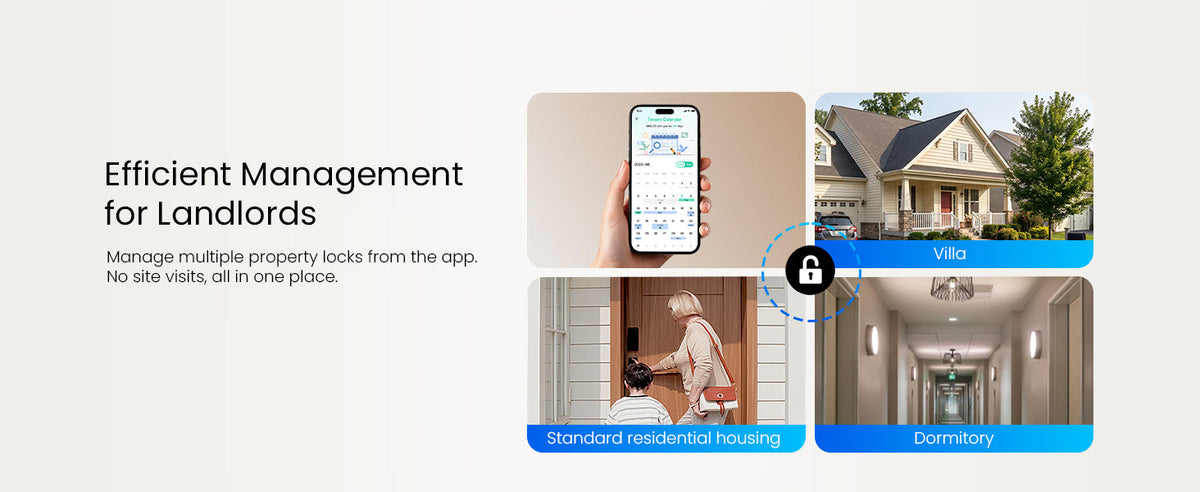
The product documentation describes property groups, a tenant calendar, records of current shares, and time-limited device sharing. Together, these give an owner a clearer place to check the status of a property and the people connected to it. The calendar is a view for organizing rental status; it should not be treated as a reservation feed from a booking platform.
Landlord Mode features at a glance
| Feature | What it helps you do |
|---|---|
| Mode switch | Move between Standard Mode and a rental-focused management view for the same lock. |
| Landlord and tenant labels | See people and permissions described in terms that fit a rental property. |
| Device-page shortcuts | Reach commonly used rental controls from the lock's device page. |
| Tenant calendar | View a property's rental status by week or month; enter and check dates yourself. |
| Property groups | Organize locks by property and move or remove them in groups. |
| Time-limited device sharing | Choose ongoing, preset, or custom sharing periods when inviting someone. |
| Expiration alerts and access removal | Receive expiration notices and have a time-limited device share end at its set time. |
| Sharing records | Review active device shares and their expiration times. |
These are app management features. Passcode and one-time entry options depend on the lock model and are separate from device sharing.
Think in visits, not just users
Before adding someone, decide what that person actually needs. A tenant living at the property for months, a guest staying for a weekend, and a cleaner entering once should not all receive the same type of access.
For a longer stay
Share access for the agreed rental period and set its expiration when creating the invitation. The documentation describes options for ongoing, preset, or custom durations. Check the dates before sending, especially when a move-in or move-out time changes. A tenant who accepts a device share may need the DESLOC App, so explain that step before arrival.
For a short stay
Set the access window around the actual check-in and checkout plan. Time-limited device sharing and scheduled passcodes are different tools: a device share gives someone app-based access to the lock, while a passcode is entered at the door. Choose the method supported by the specific lock and appropriate for that guest. Do not assume that a booking automatically creates or updates either one.
For a one-time visit
A showing, repair visit, or cleaning appointment may call for a one-time or narrowly scheduled credential where the lock supports it. Keep the window as short as practical and confirm that it has been used or removed afterward. Features and naming can vary by lock model, so use the controls shown for your device rather than reusing instructions from another model.
Two workflows you can adapt to your property
Use your lease or booking record to confirm dates, then set access in the DESLOC App. Landlord Mode does not import reservations or synchronize permissions with a booking platform. Before anyone arrives, send clear entry instructions and have an authorized backup way in.
Long-term rental: from showing to turnover
| Stage | Owner or manager action | Check before moving on |
|---|---|---|
| Showing | Arrange access for an agent or prospective tenant using a narrowly timed credential, if the lock supports it. | Confirm the right door and remove unused access after the visit. |
| Agreement | Confirm move-in and move-out dates with the tenant outside the app. | Use the agreed dates when setting the access period. |
| Move-in | Share the device for the tenancy and explain any app setup the tenant needs. | Check the invitation, recipient, door, and expiration time. |
| Change of plans | Update the share for a renewal or revoke it if the tenant leaves early. | Review the active sharing record after the change. |
| Move-out and turnover | Confirm tenant access has ended, then issue separate short access for cleaning or repairs if needed. | Check that old access is inactive before the next resident arrives. |
Short stay: from booking to checkout
| Stage | Host action | Check before moving on |
|---|---|---|
| Booking confirmed | Read the arrival and departure details in your booking record, then open the correct property in the DESLOC App. | Confirm the door and the property's local time. |
| Before arrival | Create an appropriate time-limited share or supported scheduled passcode, and send clear entry instructions. | Verify the credential and its start and end times. |
| During the stay | Adjust access yourself if arrival, checkout, or the guest list changes. | Review which shares or codes remain active. |
| Checkout | Check that the guest's access has expired or revoke it if the stay ended early. | Confirm the departing guest no longer has active access. |
| Turnover | Give the cleaner a separate, limited credential if needed. | Remove or confirm expiration of that credential after the visit. |
What Landlord Mode helps with—and what still needs a human
Landlord Mode can make permissions easier to organize, reduce the need for in-person key handoffs, and give owners a more structured view of their properties. It cannot decide whether a lease has ended, whether a cleaner completed a visit, or whether a guest received the right instructions. Those decisions still belong in the owner's operating routine.
For a small landlord or host, the most useful habit is a brief access review whenever a person moves in, checks out, or finishes work at the property. Confirm the person, door, credential, and end time. This takes less mental effort than trying to remember which codes and shares were created weeks ago.
Getting started in the DESLOC App
On a supported lock, open the device page in the DESLOC App and use the Mode control in the upper-right corner to select Landlord Mode. Then organize your properties and review the access options available for that lock. Before inviting a tenant or guest, check the expiration setting and the current sharing record. For model-specific setup, consult the DESLOC App guide and the instructions for your lock.
Frequently asked questions
Will access end when the rental period is over?
Time-limited device shares are designed to expire at the time set by the owner. Check the sharing record after checkout, and revoke access manually if the stay ends early. A passcode may follow a separate schedule, so review the credential you actually issued.
Does every visitor need the DESLOC App?
Not necessarily. A person accepting a shared device may need the app, while a supported door passcode can be entered at the lock. The available methods depend on the model and the access option you choose.
Can I manage more than one property?
Landlord Mode includes property grouping and a rental-status calendar in the current product documentation. Use the grouping view to keep each lock associated with the correct property and check the active permissions for each door.
What if a guest leaves early?
Update or revoke that person's access when the plan changes. Do not rely on an originally scheduled end time if it no longer matches the stay. Check the app afterward to confirm the credential is inactive.
Make every handoff easier to verify
The value of a connected rental lock is not just letting someone in without a key. It is knowing which door you gave them access to, when that access should end, and whether it was actually removed. Build those checks into each arrival and departure, and Landlord Mode becomes a practical part of the way you run the property.
Explore the DESLOC App and check the access features available for your lock.